maximize your color

Blue Hour Boating


This image was taken last night during civil twilight from our local marina located at Buck Creek State Park. What you are looking at is the final image after post processing. The "blue hour" after sunset is the perfect time to capture brilliant colors. The reds and blues that result from the sun setting behind the horizon can be spectacular. This kind of display begs for you to get the most out of your colors. Don't settle for ordinary colors.


Blue Hour Original Boats


This is the image SOOC (straight out of the camera) and though the colors are there, they are somewhat subdued. I want to maximize the color and make it explode out of the image. How do I do that?

I get over the top colors by making color adjustments in my photo editor. I use Apple's Apurture for my relatively straight forward image adjustments. However, when I need something more complex like multiple layers and localized adjustments, I turn to Photoshop, a tool that I use professionaly as well as on my personal work.  In thi simage, I want the blues and reds to come to life. Adjusting two seperate colors in different areas of the image requires multiple layers and layer masks… that means Photoshop.


Blue Hour Red Boats


First step is to copy the original layer twice, once for the blue and once for the red adjustments. I will save the original layer image unchanged in case I need to go back to it. In the image above, I have adjusted the reds so that they are stronger than in the original. I repeat the same process with the blues on a separate layer.

Notice that as I adjusted the reds, the entire image is changed. The blues are more purple and there is now a lot of red in the white boat that I don't really want. By placing the red layer on top of the blue layer and by adding a layer mask to the red layer, I can "paint" out the areas of the red layer that I don't like. This will allow the blue layer to show through from beneath. Using a soft brush with low transparency settings, I can slowly build up the blues that I need in the final image.


Blue Hour Boating


Once again, here is the final image. Notice the vibrant colors. I was able to showcase Ma Nature's color show without ruining the whites and greens that I wanted to remain untouched. Don't be afraid to maximize your colors when the occasion calls for vibrant hues. Go ahead, don't settle, knock your viewer's socks off.


internal conflict 2

Internal Conflict 2


As you can guess by the image, I am still playing around with the idea of multiple self portraits and what I could do with them. I continue to have a lot of ideas for what I could do and this image is another step forward in practicing and developing the Photoshop skills needed to pull it off. In this image, I wanted to get the individual portraits closer together and overlap the bodies. So, I had the right hand portrait overlap the center figure. The actual photographic process remained the same one used in The Five Tims image that I posted last week. On the post process ing side of the equation, I still struggle with the overlapping skin tones and have pretty much decided that the problem I am encountering starts in the photography and will make some changes on the front end. Stay tuned, there will me more images of this type to come in the future. When you have had enough, let me know.

The mustache? It won't last much longer. I have never had a full mustache in my entire life and I wanted to grow one while I could. The stache is on thin ice right now. Everytime I eat ice cream, I get the cold confection all over my upper lip and that my friends, is just silly. Who wants to waste perfectly good ice cream that way?


changing the light

Good Morning Farm


Remember that in this morning’s post, I wrote about a picture that I was not happy with? This is it… after I worked on the image a little.


Farm_Pano - Version 2

This is the same image before I made any adjustments. The image just does not reflect what I felt when I took the picture. What did I do? I made tone, contrast and color adjustments in Aperture. As far as color adjustments, I tweaked the red channel until I got the morning light tones that I remembered.

I am still not completely happy with the image and am still toying with going back earlier tomorrow morning. If I do, you will be the first to know.


split personalities

The Five Tims


Ever feel like there is more thatn one person bottled up inside of you? Yestrerday, I was having some of those feelings. This extreme heat is driving me crazy. Part of me wanted to go outside and brave the heat just to take some pictures. But, every time I would go outside, the heat would drive me back into the air conditioning. A heat index of 110F will drive you nuts. Another part of me just wanted to take a nap. Still another part of me was bored and wanted to get up and do something, anything!

That is when I decided to make this image. From beginning to end, an hour and a half for photography and photoshop. Not bad at all. Now that I've finished it, I want to shoot more shots & modify the image. I also have new ideas for other multiple self portrait images. I love it when a little bit of creativity gets the blood going and leads to new ideas.

In the end, going a bit stir crazy led to some great results. The key was acting on that "getting up and doing something, anything" feeling. I am glad that I went with the active personality and not the nap personailty. Though, I have to tell you, I am the king of naps!

Want to make a similar image of your own? Their are probably plenty of methods to choose from but, here is how I did it:


1. Set up your studio. For me this meant moving some furniture around and selecting a big blank wall.

2. Get your outfits ready for your "costume" changes.

3. Set up your camera on a tripod and test out your lighting. The more you perfect your lighting at tis stage, the less work you will have to do in your photo editor.

4. I selected an aperture of f8 to ensure that I had a fairly wide DOF. I wanted all of the "Tims" to be in focus.

5. I shot an image of the chair in AF mode. With the image in focus, I switched to MF mode to lock in the focus.

6. I had decided to shoot five "positions" of myself & placed a pencil on the floor to mark where each position would be centered.

7. I then shot several poses for each position, using the camera's timer. I tried using the remote but, every test image showed the remote in my hand & that is not what I wanted.

8. I then downloaded the images and brought my favorite image for each position into Photoshop by placing each of them on a seperate layer. I stacked the layers so that the over laping positions were on top of the underlying positions.

9. I added a layer mask to each layer and used a black brush to remove the portions of the layer that I did not want to show. This allowed the underlying layers to show through.

10. When I was satified that I had all of the layers the way that I wanted them, I copied and merged the copied layers into a single layer. This allowed me to retain the original layers just in cae I needed them again.

11. Finaly, I made all of my normal curves adjustments for color, tone, contrast, etc. on the new merged layer. I also used the healing brush and clone stamp tool to remove or blend any inconsistencies. 

Of all the raw images, this one was my favorite. Why? Because I look skinny. Plus, how cool is that pose?


DSC04786

That folks, was all. Not a whole lot of work for such a fun image. If you give it a try, post your results in the comments. I would love to see your split personalities as well.


still life experience

Flower Vase 6


Do you know what you are looking at? I do. I am pretty sure that this is my very first intentional still life. It was an interesting process of thought, trial and error, more thought and more trial to get the shot to this point. I have been wanting to take a photo of flowers in this vase for some time now and in my mind, I wanted to create a still life painting with my camera.


Flower Vase 4


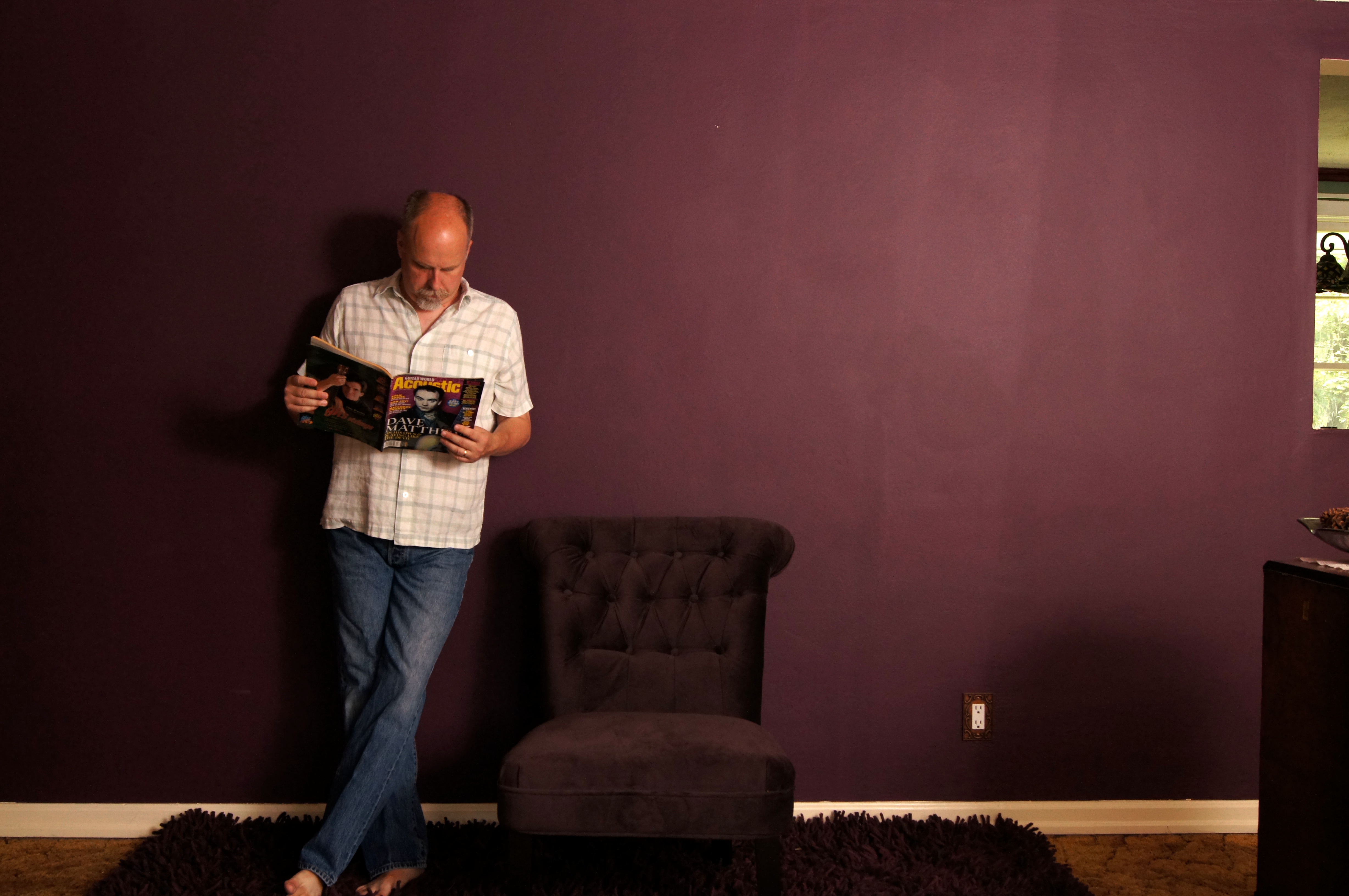
I started by running around the house collecting props. I put them against my favorite wall and re arranged them a few times until I was happy. The early shots pretty much are typified by the image above. Definitely missing something. Can you believe that this wall is really purple? You can still see traces of the offending violet in the lower part of the image.


Flower Vase 5


I then decided that the image needed something to make it feel more lush and maybe softer & added the orange cloth (We have a surprising amount to cloth in our home due to my wife's belly dancing costume collection). I thought the cloth did the trick to a large extent but I thought the hue, saturation and luminosity (remember the three parts of color from a previous post?) were all out of whack and were steeling the focus from the vase. So, back to photoshop where I changed the hue to a yellow and then adjusted the saturation and brightness to tone it down and make it look more like gold. I also decided that I really should let the table show

I have definitely left my comfort zone with this project and that is not a bad thing. I can't think of a better way to learn than to step out and try something new. From beginning to end, I put about six hours into this project and took over one hundred images to get it just the way I wanted it. The important thing is that I had a vision and followed it, slight detours and all.

Anybody know where I can sign up for lessons in arranging flowers?

Finally, I thought I would close with the following image showing how my cat, Betty, wanted to get in on the process. Consider it a not so still life. How is that for a purple wall?


Not so Still Life


Have a great day folks & don't forget to follow your vision.


portraits and color

Joe Purple


Today, I'd like to talk about how similar and opposing colors affect portraits by taking a look at two identical portraits whose only difference is the color of the subjects shirt. This image is a fairly straightforward traditional portrait, perfect for what we want to look at.

 Whenever we want the object in our images to stand out from their backgrounds, we need to see a contrast between what we want our audience to focus on and what we don't. Often this contrast takes the form of opposing lighting, texture and pattern. Here, we are looking at contrasting colors. In the original image, the man in the photograph is wearing a purple plaid shirt. Unfortunately purple is very close to red on the color wheel. The similarities in the two colors makes it difficult for our eye to settle in one place. We intuitively want to look at the face but, the purple is trying to draw our eyes to the shirt as well. When our eyes don't know where to go, we lose much of the impact that we could get from the portrait.


Joe Green


In the second image, I have replaced the purple with green. Green is on the opposite side of the color wheel from the red hue that is prevalent in the face and provides a nice contrast. We refer to their relationship as being complementary. Red and green are complementary, purple and yellow are complementary as well as blue and orange. 

However, I didn't stop at changing the Hue to green. I also desaturated the green and reduced it's brightness or luminosity to add further contrast with the subject's face. Now, our eyes are drawn very strongly to the face and don't even want to move to the shirt. Color is made up of three distinctive qualities (Hue, Saturation and Luminosity) and we have changed all three of them to maximize the difference in color.


Betty 2


Let's take a look at a second example. In this image of my cat, Betty, The over riding colors are the purple int he wall and the green in her eyes. Another color is the small bit of blue in her collar. Purple and green are complementary colors so, on the surface they look to be ok. The immediate problem is the blue. Blue clashes with both the purple and the green.


Betty 1


Eliminating the blue is pretty easy. I didn't want another patch of color, so I simple desaturated the blue until it turned to grey. Now the buckle simply disappears in to the muted colors of her fur.

With the blue eliminated, I decided that I wanted to place more emphasis on Betty's eyes. Remember the three components of color? Hues, Saturation, and Luminosity? I didn't want to change the hue, the green is her natural color and wasn't a problem in the presence of the purple. I thought the eyes had plenty of brightness so, I decided not to fuddle with the luminosity. That left saturation. By bumping up the saturation of the green, I was able to give more strength to her eyes. Now, without a doubt, you are instantly drawn to her eyes.


sun beam experiment

Sun Beam 3


I love those sun beams that you see streaming from bright sunny windows into dark rooms. Unfortunately, they are hard to find and photograph. So, like any self reliant person, I decided to make my own using the radial blur filter in PhotoShop.


Sun Beam 1


The process was pretty easy. I simply selected the bright areas and hit control J to copy them to their own layer and then applied the radial blur filter repeatedly until the sun beams were of the length I wanted. with the sun beams in place, I used the eraser tool to clean up a few areas.


Sun Beam 2


I can imagine that the technique would be great for creating those beautiful god rays that you see on cloudy days. I can't wait for a cloudy day, go figure.


Sun Beam 4


What do you think of the final results? I think that some of them work better than others. Which images work for you? Let me know, your opinion counts around here.


before and after

M.N. Before

M.N After


A very special young lady asked me to shoot her senior portraits. I don’t shoot a lot of portraits but, she is a great kid and she, her sister, and her mom have very kind to me over the last few months. So, I did not hesitate to say yes.

The shoot was a lot of fun. We shot at a couple outdoor locations and I ended up with quite a lot of images. After the shoot, Her mother joined us and we sat down and sifted through the raw images to cull out the bad ones (there are always bad ones).

Post processing included my standard color and contrast adjustments.  However her mother had asked me to take a shot at her severe acne on a few of the images. I thought it was a good idea to show her how the rest of us saw her. The big but here is that I firmly believe that people are unique and beautiful as they are. I didn’t want to completely eradicate her acne because I wanted her images to reflect her true self. On the flip side, as anybody would, she wanted to look her best. I had a fine line to walk.


Here is how I approached the post processing in PhotoShop.

1. I made a duplicate layer of the original image to protect the original.

2. I performed my normal curves adjustment for color and contrast.

3. I then used the healing and clone tools to remove the worst of the spots. I also brightened the teeth just a bit.

4. I then duplicated the layer from step 3 and made a levels adjustment to the red channel only. The adjustment amounted to moving the lightness slider all the way to the right. I then masked out the lips and other areas that I did not want effected. I set the layer blending mode to luminosity. This removed most of the red splotchyness from the skin.

5. I then merged the layers from steps 3 and 4 and duplicated the resulting layer.

6. I applied a heavy gaussian blur to the new layer and set its blending mode to overlay. This smoothed the scaring to the skin without completely eliminating it. Once again, I merged this layer with the layer in step 5.

7. I created a new empty layer and filled it with black, setting the blend mode to soft light.

8. I then merged all of the remaining layers and saved the new version of the image.


How did I do? Was I successful in walking the fine line? I would be interested in what you think of the final image.